
How to Make a Seamless Instagram Carousel
Creating a seamless panoramic swipe across an Instagram carousel requires designing on a continuous canvas sized to exact multiples of 1080 pixels (such as 3240x1350 for a 3-slide vertical post) and slicing with zero pixel overlap. Exporting at arbitrary resolutions or using standard 1:1 square crops forces Instagram’s mobile compression engine to rescale the images, creating visible white seam lines and sacrificing 33 percent of vertical screen height.
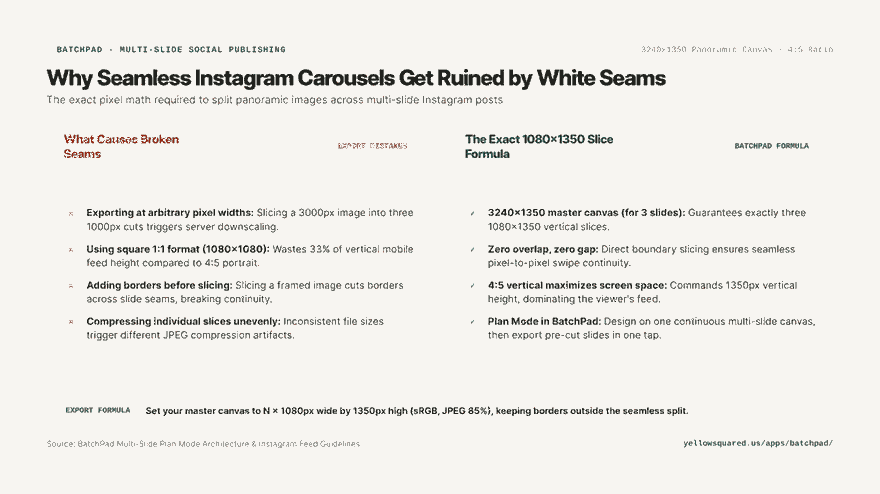
The multi-slide carousel is the highest-engagement organic format on Instagram, earning significantly higher save and share rates than single static photos. When executed with panoramic continuity—where a wide photograph or editorial layout flows seamlessly across adjacent slides as the viewer swipes—carousels command extended dwell time. However, many photographers discover jarring vertical gaps or blurry seam lines after uploading.
A seamless carousel is an illusion created by pixel math; if your slice width is off by even one pixel, Instagram reveals the seam.
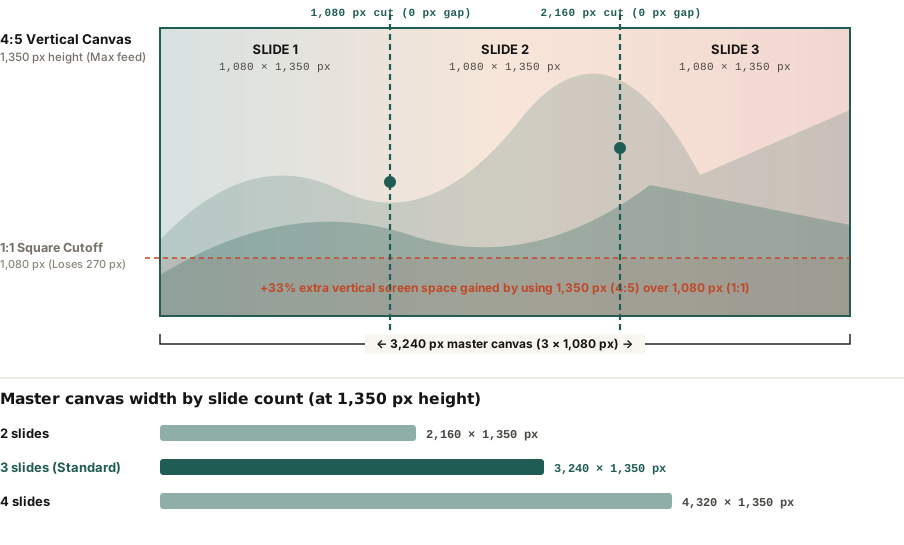
The 4:5 Vertical Mandate: 1080 x 1350 Pixels
The most common mistake creators make is building carousels in a square (1:1) format at 1080x1080 pixels. While square images were standard in 2015, modern mobile feeds prioritize vertical real estate:
- Maximum Vertical Ratio: Instagram supports up to 4:5 aspect ratios (1080 pixels wide by 1350 pixels high) for feed posts.
- 33% More Screen Space: A 4:5 vertical slide occupies 1.45 million pixels on screen compared to 1.16 million for a square post, completely filling the mobile viewport and pushing adjacent distractions out of sight.
- Seamless Multipliers: To create a continuous vertical panorama, multiply 1080px by your desired number of slides while keeping height fixed at 1350px:
- 2 Slides: 2,160 × 1,350 pixels
- 3 Slides (Sweet Spot): 3,240 × 1,350 pixels
- 4 Slides: 4,320 × 1,350 pixels
Why White Seam Lines Appear and How to Stop Them
When you swipe across a carousel, Instagram caches adjacent slides and displays them side-by-side. If you notice a thin white line or a sudden jump in image alignment during the swipe transition, one of three technical errors occurred:
- Non-1080px Slice Widths: Slicing a 3,000px image into three 1,000px images forces Instagram to upscale each slide to 1080px, introducing interpolation rounding errors that break boundary alignment.
- Borders Applied Before Slicing: If you add a decorative border to a panoramic photo before cutting it, the border will slice down the middle of your image, destroying seamless flow.
- ICC Color Profile Inconsistencies: If slice 1 is exported in Display P3 and slice 2 in sRGB, the mobile operating system will render a noticeable shift in color saturation as you swipe between frames. Always export all slices in sRGB.
Carousel Canvas Geometry Reference Table
| Carousel Layout | Master Canvas (W × H) | Individual Slide Size | Aspect Ratio | Best Use Case |
|---|---|---|---|---|
| 2-Slide Panorama | 2,160 × 1,350 px | 1,080 × 1,350 px | 4:5 Vertical | Before/after reveals, dramatic wide portraits |
| 3-Slide Panorama | 3,240 × 1,350 px | 1,080 × 1,350 px | 4:5 Vertical | Optimal: Triple-slide continuous storytelling |
| 4-Slide Panorama | 4,320 × 1,350 px | 1,080 × 1,350 px | 4:5 Vertical | Broad landscape photowalks, multi-step tutorials |
| 3-Slide Square | 3,240 × 1,080 px | 1,080 × 1,080 px | 1:1 Square | Legacy square feeds (loses 33% screen height) |
Tips for Designing Seamless Storytelling Carousels
- Position visual hooks across the seam: Place a compelling focal element (such as a subject's shoulder, horizon line, or headline text) split directly across the slice boundary; this visual curiosity forces the viewer's finger to swipe.
- Add a subtle swipe arrow on slide one: Clear directional cues improve carousel completion rates by up to 28%.
- Batch-plan multi-slide layouts without manual cropping: To arrange multi-slide panoramas on one continuous canvas and auto-export pre-sliced slides, explore layout workflows in BatchPad.