
DPI vs. PPI: Why 72 DPI vs. 300 DPI Does Not Change Web Image Size or Quality
DPI vs. PPI: Why 72 DPI vs. 300 DPI Does Not Change Web Image Size or Quality
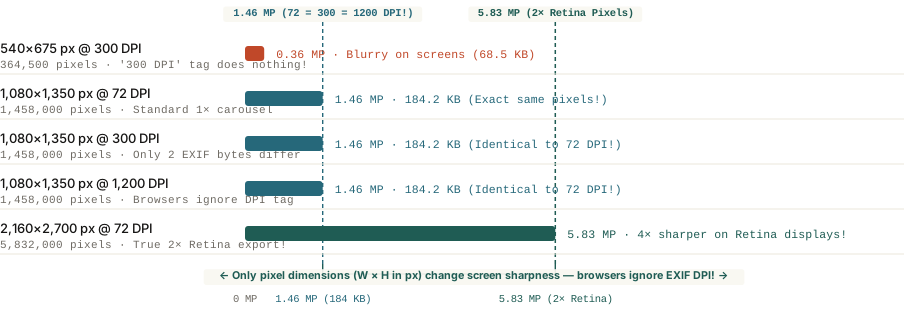
Because web browsers and social platforms render images strictly by pixel dimensions (width × height in px) and ignore the EXIF DPI metadata tag, a 1,080×1,350 px image saved at 72 DPI and 300 DPI has the exact same 1.46 million pixels and 184.2 KB file size.
Search any design forum or marketing checklist for how to export images for a website, blog, or Instagram carousel and you will see the same rule repeated as gospel: "Always export web images at 72 DPI so they load fast; save 300 DPI for print."
Test that advice yourself: open a `1,080 × 1,350 pixel` graphic in your image editor, keep the pixel dimensions locked at `1,080 × 1,350 px`, and export three copies—one tagged at `72 DPI`, one at `300 DPI`, and one at `1,200 DPI`. Drop all three files into a browser and inspect their file sizes in the terminal. Every single one is `184.2 KB`, and every single pixel on screen is `100%` identical. Understanding why the "72 DPI for web" rule is a 40-year-old holdover from the 1984 Apple Macintosh will save you from accidentally exporting blurry graphics.
Pixels vs. Physical Inches: What DPI and PPI Actually Measure
A digital image file on a computer disk does not have a physical size in inches or millimeters—it is simply a two-dimensional grid of colored numbers (`width in pixels × height in pixels`). The confusion comes from mixing up three separate metrics:
- Pixel Dimensions (`W × H in px`): The actual number of horizontal and vertical pixels stored in the file (e.g., `1,080 × 1,350 px = 1,458,000 pixels`). This is the only spatial dimension that web browsers (`<img>` and CSS) and social apps read.
- `PPI` (Pixels Per Inch) / `EXIF` Resolution Tag: A two-byte metadata instruction stored inside the file header (`XResolution` and `YResolution`) that tells a physical printer or page-layout app how many pixels to pack into 1 inch of paper (`1,080 px ÷ 300 PPI = 3.6 inches wide on paper`). Web browsers completely ignore this metadata tag.
- `DPI` (Dots Per Inch): Technically a physical inkjet or offset printer specification measuring how many microscopic droplets of cyan, magenta, yellow, and black (`CMYK`) ink a printhead sprays per linear inch to reproduce those pixels.
A digital image has no inches until you print it on paper; on a screen, 1,080×1,350 pixels at 72 DPI and 1,080×1,350 pixels at 300 DPI are the exact same image.
Where the '72 DPI' Myth Came From (And How to Export for Retina Screens)
Why did `72` become the magic number in graphic design software? In 1984, when Apple engineered the original Macintosh and LaserWriter printer, typographers used physical metal type measured in **points**, where `72 points = 1 inch`. Apple designed the Macintosh's 9-inch monochrome CRT screen (`512 × 342 pixels`) with a physical pixel density of exactly 72 pixels per inch (`72 PPI`) so that a 12-point font on screen measured the exact same physical height on a ruler as a 12-point font printed on paper.
- The Resampling Trap in Image Editors: Why do some designers see their file size shrink when they type `72` into the PPI box? Because their document size was set in **inches** (e.g., `8 × 10 inches`) with the `"Resample"` checkbox turned on! Changing `300 PPI → 72 PPI` on an `8 × 10 inch` canvas destroys `94%` of the pixels (shrinking the pixel dimensions from `2,400 × 3,000 px` down to `576 × 720 px`).
- How to Export for Web & Social Media: Ignore the DPI/PPI field completely and set your export canvas in pixels (`px`). Because modern laptops and smartphones use `2×` to `3×` high-DPI ("Retina") screens, always export UI graphics, blog charts, and carousel slides at `2×` the CSS display width (for example, `2,000 px` wide for a `1,000 px` article column, or `1,080 × 1,350 px` for a `4:5` social slide).
- When 300 PPI Actually Matters: If you are sending a poster, book cover, or brochure to a physical print shop, multiply the physical print dimensions in inches by `300` (`Inches × 300 = Required Pixels`) to ensure the file contains enough real pixels for crisp paper reproduction.
When building multi-slide technical walkthroughs, social documentation, or launch graphics with exact pixel grids, you can Plan multi-slide carousels in BatchPad with deterministic `1:1`, `4:5`, and `16:9` pixel dimensions.