
Why Do Photos Look Dull After Uploading Online? Display P3 vs. sRGB Guide
Why Do Photos Look Dull After Uploading Online? Display P3 vs. sRGB Guide
When wide-gamut images edited in ProPhoto RGB, Adobe RGB (1998), or Display P3 (+25% wider gamut) are uploaded to web pipelines that strip ICC tags and assume sRGB, RGB values map onto narrower primaries—cutting perceived saturation by 20% to 42%.
Every photographer and digital creator has hit this wall at least once: you spend twenty minutes perfecting a golden-hour portrait or landscape in Lightroom or Photoshop on a MacBook Pro or iPad. The skin tones glow, the terracotta reds pop, and the shadow contrast looks crisp. Then you export a JPEG, upload it to a website, client portal, or social scheduler, and open it on another tab or phone—only to find the colors looking pale, chalky, and lifeless, as if someone dragged the saturation slider down by 25 points.
Your monitor is not broken, and the platform did not apply a secret desaturation filter. Instead, your image fell victim to an untagged wide-gamut color space mismatch—specifically the gap between internal editing spaces (ProPhoto RGB, Adobe RGB 1998, and Apple's Display P3) and the universal baseline of the web (sRGB IEC61966-2.1).
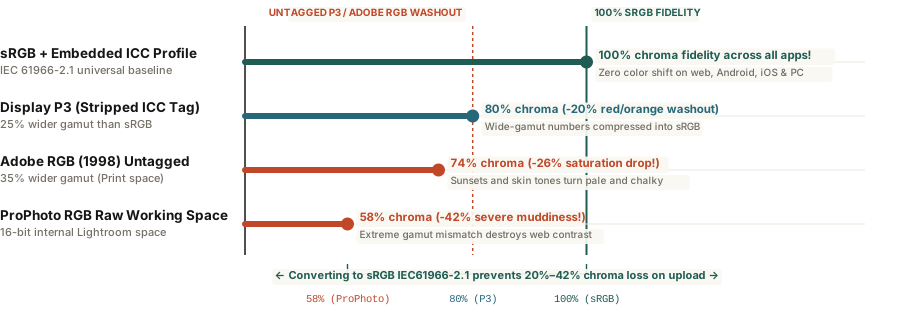
The Math of the Washout: Why RGB `[220, 50, 30]` Is Relative
An 8-bit JPEG stores every pixel as three numbers from `0` to `255`—for example, `R=220, G=50, B=30`. By themselves, those three numbers do not specify an absolute physical color; they specify a percentage of the maximum red, green, and blue primary coordinates defined by the file's color space:
- sRGB (`IEC 61966-2.1` — 35.9% of CIE 1931): Created by HP and Microsoft in 1996, sRGB is the universal default of the internet, Windows, Android, and social media compression engines.
- Display P3 (45.5% of CIE 1931 — +25% Larger Than sRGB): Used natively by modern Apple MacBooks, iMacs, iPhones, and high-end OLED monitors. Its primary red and green coordinates sit significantly further out toward the spectral locus, unlocking deeper crimsons, vibrant oranges, and emerald greens.
- Adobe RGB 1998 (50.6% of CIE 1931) & ProPhoto RGB (90.0% of CIE 1931): Wide working spaces designed for commercial CMYK print prepress and 16-bit raw processing inside Lightroom.
Here is why the washout happens: inside a wide-gamut space like Adobe RGB or Display P3, a moderately vibrant orange only needs a numerical value of `R=205, G=85, B=50` because the red primary at `255` is so extreme. When you upload that file to a web compressor or viewer that strips the embedded ICC profile tag and assumes the file is standard sRGB, the display renders `R=205, G=85, B=50` relative to the much narrower sRGB primaries—shrinking perceived saturation by 20% (from P3), 26% (from Adobe RGB), or 42% (from ProPhoto RGB).
Exporting in Adobe RGB for the web doesn't give viewers more colors—it hands them wide-gamut numbers that get misinterpreted as washed-out sRGB pastels.
The 3-Step Export Fix for Lightroom and Photoshop
- Convert to sRGB (Never "Assign"): In Lightroom's Export dialog under File Settings, set Color Space: sRGB. In Photoshop, always use Edit → Convert to Profile → Working RGB: sRGB IEC61966-2.1 (which mathematically recalculates `[205, 85, 50]` up to `[242, 72, 38]` so the visual color stays identical). Never use Assign Profile, which swaps the label without recalculating the numbers.
- Check "Embed Color Profile": In Photoshop's Export As or Save for Web (Legacy) dialog, always check both Convert to sRGB and Embed Color Profile. The ICC tag adds less than 3 kilobytes to the file and tells P3-capable Apple and Android displays exactly how to map the sRGB primaries without over-saturating skin tones.
- Soft-Proof Saturated Reds Before Exporting: Press `S` in Lightroom's Develop module (with Profile set to sRGB) when editing neon signage, scarlet flowers, or fiery sunsets so out-of-gamut P3 colors are tamed gently before export.
To export multi-slide social carousels that preserve exact sRGB color fidelity and crisp 1,080-pixel geometry across every slide, you can Plan multi-slide carousels in BatchPad directly in your browser.