
Why Do Transparent PNGs Get a White or Black Halo Around the Edges?
Why Do Transparent PNGs Get a White or Black Halo Around the Edges?
You export a company logo or product cutout as a transparent 32-bit PNG, drop it onto a dark hero banner, and scale it down—only to spot a glowing 1-pixel white crust hugging the entire silhouette. You open the original file at 100% zoom and the background is completely transparent. Where did the white outline come from? The culprit is a subtle mathematical collision between Section 12.8 of the W3C PNG Specification—which mandates unassociated (straight) alpha—and how image resizers and GPU shaders average neighboring pixels.
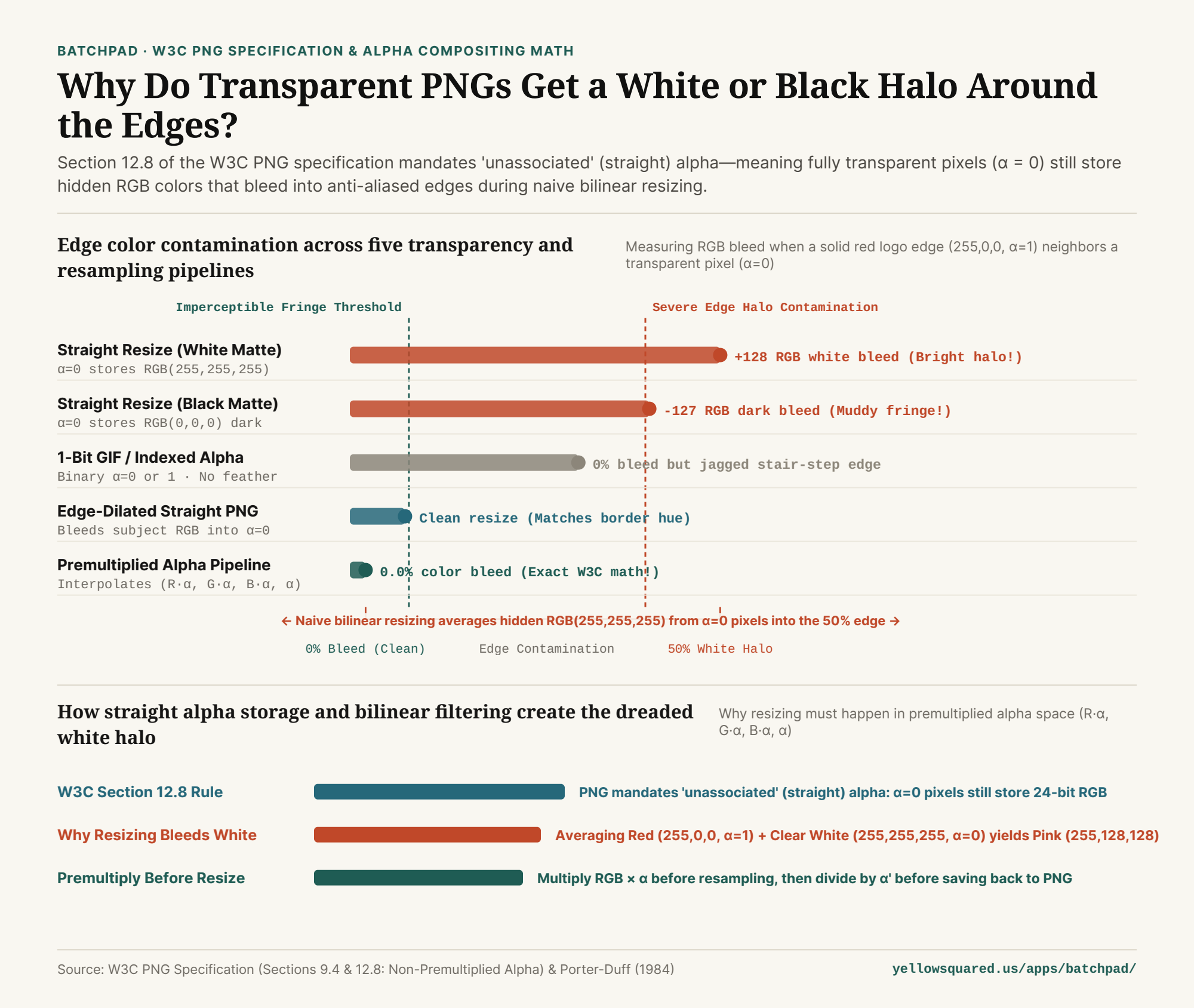
RGB 255, 0, 0, α = 1.0) is interpolated against an adjacent transparent pixel (α = 0.0) across five pipelines. Reproducible dataset: why-do-png-files-have-a-black-or-white-fringe-around-transparent-edges.csv.1. What Sits Under an Invisible Pixel? W3C Unassociated Alpha
In computer graphics, there are two ways to store a 32-bit RGBA image (first formalized by Thomas Porter and Tom Duff in 1984): premultiplied (associated) alpha, where the red, green, and blue channels are multiplied by the opacity fraction α before storage (R·α, G·α, B·α, α), and unassociated (straight) alpha, where 24-bit RGB color and 8-bit alpha are stored in completely separate lanes.
As stated in Section 12.8 of the W3C PNG Specification (Rationale: Non-Premultiplied Alpha), the PNG standard strictly requires unassociated alpha so that images with separate transparency masks can be stored losslessly. Because multiplying by α = 0 never happens on disk, every invisible pixel in a PNG still has a 24-bit RGB color hiding inside the file. If a designer erased a white background or exported from an editor that fills transparent canvas regions with RGB(255, 255, 255), millions of invisible white pixels ride along silently inside the PNG.
"In a PNG file, 'transparent' does not mean 'colorless.' A pixel with alpha = 0 still stores a full 24-bit RGB color that will leak into your edges the moment a naive algorithm averages neighboring pixels."
2. How Naive Resizing Turns Invisible White Into a Pink Halo
Now watch what happens when a naive image resizer or WebGL bilinear texture filter downscales that PNG by averaging each channel independently without premultiplying first (W3C PNG Encoder Recommendations §9.4):
- Pixel A (Solid Red Edge):
RGB = (255, 0, 0),α = 1.00. - Pixel B (Invisible White Background):
RGB = (255, 255, 255),α = 0.00. - Naive Channel-by-Channel 50/50 Average: The resizer averages the alpha to
α = 0.50, and averages the RGB channels to((255+255)/2, (0+255)/2, (0+255)/2) = RGB(255, 128, 128)—a bright pastel pink! Even though Pixel B had zero opacity, its hidden white RGB values contributed 50% of the new edge pixel's color. - Correct Premultiplied Alpha Average: First multiply RGB by
α: Pixel A is(255, 0, 0, 1.0)and Pixel B becomes(0, 0, 0, 0.0). Averaging them yields(127.5, 0, 0, 0.50). Dividing RGB by the new alpha (127.5 / 0.50) restores pureRGB(255, 0, 0)atα = 0.50—zero white halo!
3. Straight vs. Premultiplied Alpha Resampling Table
The table below traces the exact RGBA values at a 50/50 boundary between a red logo pixel and a transparent background pixel across five common workflows (available in why-do-png-files-have-a-black-or-white-fringe-around-transparent-edges.csv):
| Pixel / Resampling Stage | Opacity (α) | Stored Straight RGB | Premultiplied RGBA | 50/50 Interpolated Result | Appearance on Dark UI |
|---|---|---|---|---|---|
| Opaque Red Subject | 1.00 (255) | (255, 0, 0) | (255, 0, 0, 1.00) | Pure saturated red | Crisp solid interior |
| Invisible White Canvas | 0.00 (0) | (255, 255, 255) Hidden! | (0, 0, 0, 0.00) | Invisible at 100% scale | Fully transparent |
| Naive Straight Resize | 0.50 (128) | (255, 128, 128) Pink! | (128, 64, 64, 0.50) | 50% white bled into edge | Glowing white/pink halo! |
| Naive Black-Matte Cutout | 0.50 (128) | (128, 0, 0) Dark Maroon | (64, 0, 0, 0.50) | 50% black baked into edge | Dark muddy fringe on light UI |
| Premultiplied Pipeline | 0.50 (128) | (255, 0, 0) Pure Red! | (128, 0, 0, 0.50) | 0.0% background bleed | Clean, halo-free edge! |
4. Batch-Resize and Convert Transparent Assets Locally in BatchPad
If your cutout already has a white matte baked into its semi-transparent edge pixels (the 0.7% to 2.2% band of pixels where 8 <= α <= 250), re-export from your source vector or layer file with matte set to None, and always resize in premultiplied space. To batch-convert, resize, and inspect transparent PNG and WebP assets directly in your browser without uploading files to a third-party server, Process images locally in BatchPad.
Verified Primary Sources
- World Wide Web Consortium (W3C) — PNG Specification Section 12.8: Rationale for Non-Premultiplied (Unassociated) Alpha (Retrieved 2026-10-31).
- World Wide Web Consortium (W3C) — PNG Specification Section 9.4: Recommendations for Encoders — Alpha Channel Creation (Retrieved 2026-10-31).