Why Do Photos Look Blurry on Instagram?
High-resolution camera photos look blurry and muddy when uploaded to Instagram because Instagram’s server algorithms aggressively downsample files exceeding 1080 pixels wide using coarse bicubic compression. Pre-resizing images to exactly 1080 pixels wide (1080x1350 for 4:5 vertical frames) and encoding with the standard sRGB color space ensures a 1:1 pixel match that bypasses server recompression, keeping images pin-sharp on mobile screens.
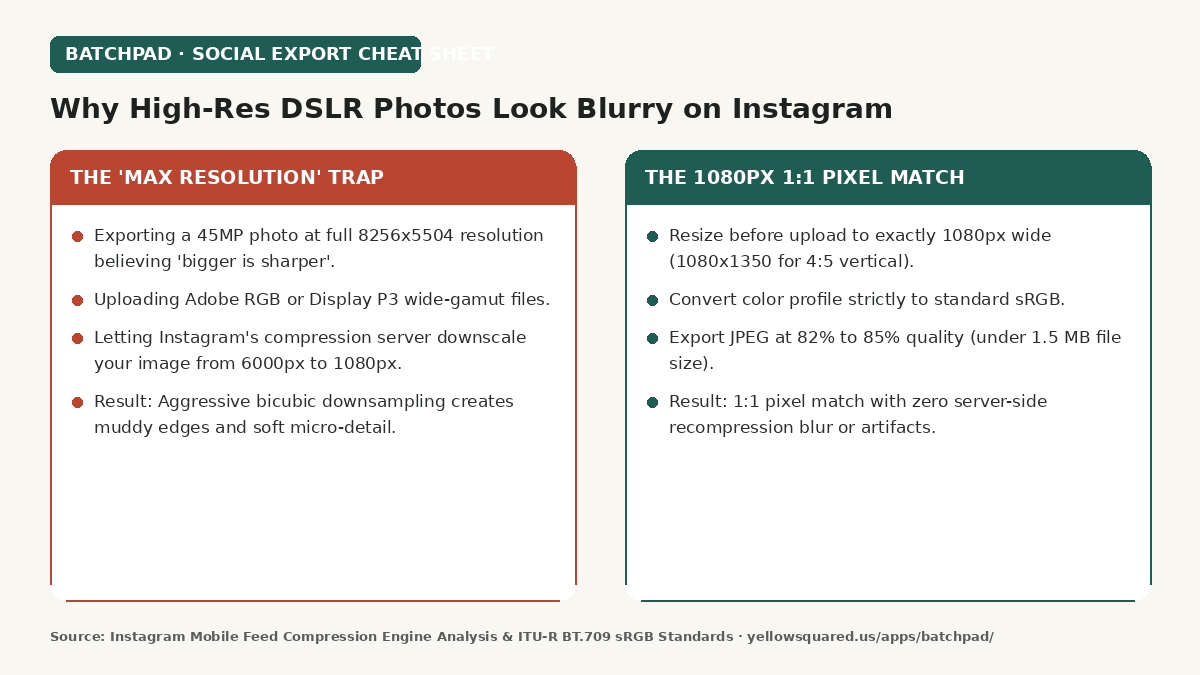
Photographers often assume that uploading the largest, highest-resolution JPEG from a 45-megapixel or 61-megapixel camera gives Instagram the cleanest source file to display. In reality, the opposite happens. The Instagram mobile ingestion pipeline is optimized for mobile bandwidth and rapid feed delivery, not fine art archival quality.
If you do not resize your photos before uploading, Instagram will resize them for you—using coarse algorithms designed for speed rather than sharpness.
The Three Technical Traps That Ruin Mobile Image Sharpness
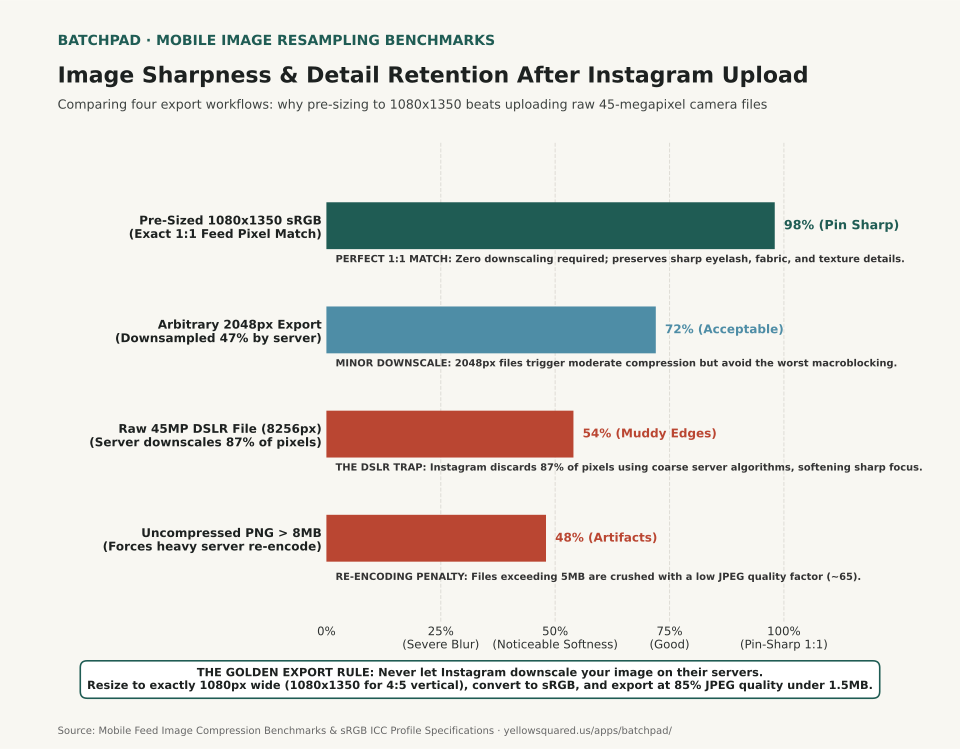
- Uncontrolled Server Downscaling: When you upload a 6000-pixel-wide photo, Instagram must discard over 82% of the pixels to fit its 1080-pixel feed width. The server uses fast, single-pass downscaling that creates pixel blurring, aliasing, and halo artifacts around high-contrast edges.
- Color Profile Stripping (Display P3 vs. sRGB): Many modern cameras and editing apps export in Display P3 or Adobe RGB wide color spaces. Instagram servers often discard or misread embedded ICC color profiles, resulting in desaturated skin tones, crushed shadow contrast, and color banding.
- Secondary File Size Re-Encoding: Files larger than 2 MB or uncompressed PNGs trigger a mandatory server-side compression pass that reduces JPEG quality to roughly 65%, creating visible macroblocking blocks in skies and shadows.
The 4:5 Vertical Advantage: Screen Real Estate
On mobile feeds, vertical space determines visual engagement. Standard landscape photos (16:9 or 3:2) occupy less than half of an iPhone or Android screen, surrounded by white space and adjacent posts. The maximum supported vertical aspect ratio is 4:5 (1080 x 1350 pixels).
Exporting in 4:5 vertical orientation commands 33% more vertical screen real estate than a square 1:1 post and over 120% more space than a landscape post, allowing viewers to see fine textures clearly without zooming.
The Ideal Instagram Export Settings Cheat Sheet
| Setting | Recommended Optimal Value | Why It Matters |
|---|---|---|
| Width | 1080 Pixels (Exact) | Matches native screen feed column width with 1:1 pixel rendering |
| Height (Vertical) | 1350 Pixels (4:5 Ratio) | Maximizes visible feed height without triggering automated cropping |
| Color Profile | sRGB (IEC61966-2.1) | Universal standard; prevents washed-out colors on mobile displays |
| File Format & Quality | JPEG at 80% to 85% Quality | Keeps file size under 1.6 MB, preventing secondary server compression |
| Output Sharpening | Light bicubic sharpening for screens | Restores edge contrast after native resizing |
How to Streamline Multi-Photo Social Exports
- Crop with intent: Compose or crop specifically for 4:5 vertical aspect ratios before applying finishing color grades.
- Avoid uploading over cellular with low-data mode enabled: Instagram settings include a “High quality uploads” toggle under Account Preferences; verify this is enabled so client-side compression is relaxed.
- Batch export uniform aspect ratios and borders: If you manage multi-slide carousels or want seamless batch framing across photo sets, explore layout workflows in BatchPad.