Give One Photo the Lead: Choosing a Three-Image Collage
Before choosing a three-photo collage, decide whether the pictures deserve equal space or one should carry the main idea. A row of similarly sized panels suits a comparison. A larger panel can give one photograph more room while two others provide context.
The examples below use actual BatchPad preset renders with the same three bundled sample photographs: a castle, a rose and a blossom branch. They demonstrate layout choices, not a documented trip or a test of audience attention.
Equal panels give each picture a comparable place
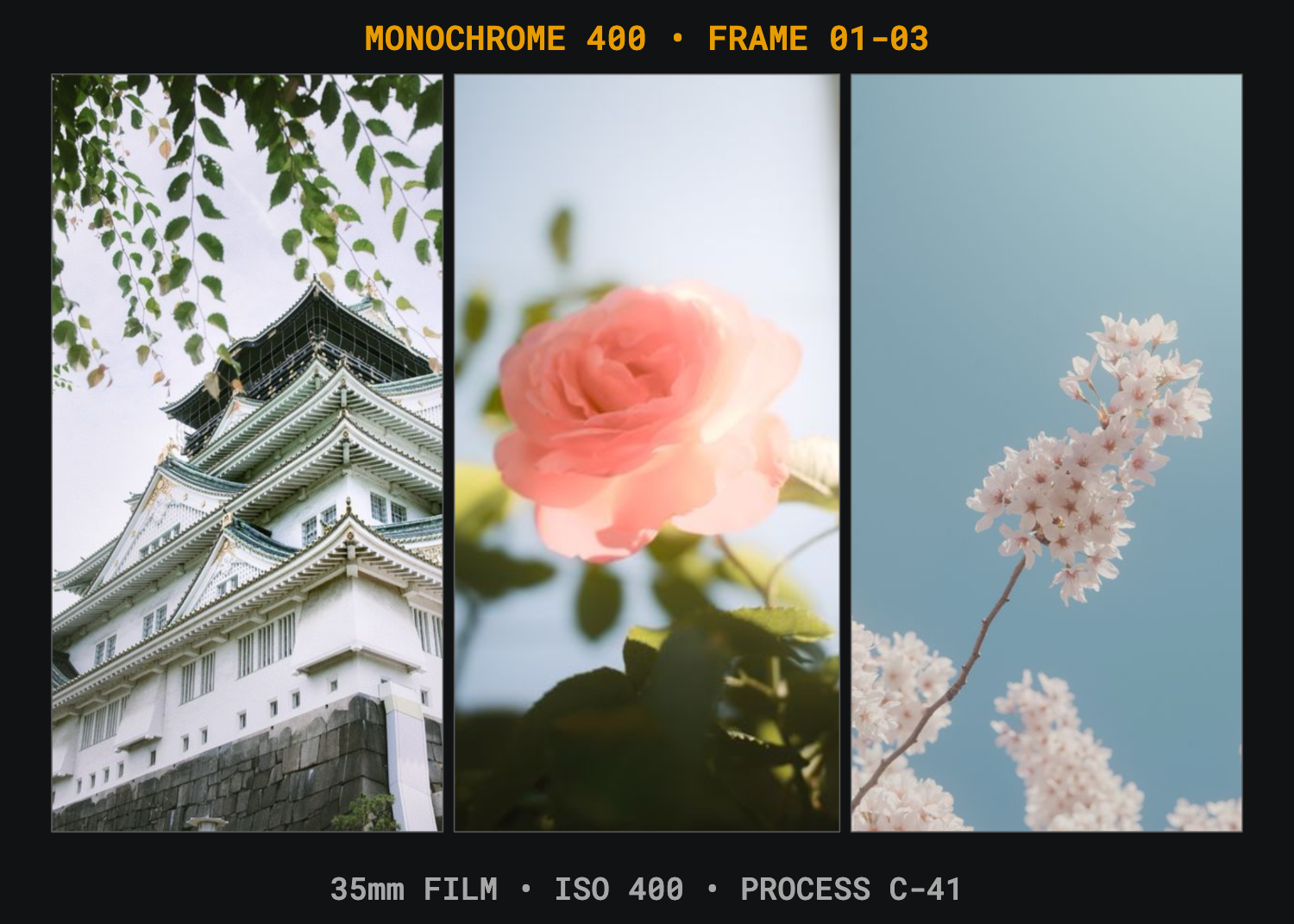
In this arrangement, the photographs sit side by side. The castle keeps a tall section of its structure, and the two flower pictures receive similarly sized frames. This is a useful starting point when you want readers to compare three subjects without giving one substantially more canvas space.
Equal frame sizes do not guarantee equal visual attention. A bright colour, face or strong contrast may still dominate. Inspect the actual images together, rather than choosing a grid solely because its cells are symmetrical.
A lead photo changes the balance

The blossom photograph now has more space. The castle and rose remain visible, but they are smaller and their crops change. If the blossom is your main subject, that allocation may suit the page better. If you need viewers to inspect the castle's architecture, the smaller left panel may be the wrong choice.
Ask what the smaller photographs add. They might show scale, a detail or a related subject. If they merely repeat the large photo without adding useful information, consider a simpler composition.
Check the crop before the decoration
- Choose the main subject or decide that the three images should be peers.
- Inspect the edges of each crop: faces, important objects and horizons should retain the parts you need.
- View the entire collage at the size someone will see it on a phone.
- Review any title, credit or decorative label for accuracy.
- Export and inspect the saved result before sharing.
A layout can preserve an image's mood while losing a detail that mattered to your story. In these examples, a broad architectural view becomes a narrower crop in one preset and a small landscape panel in the other. Neither is automatically correct.
Use BatchPad to compare a concrete result
BatchPad's collage presets combine arrangements, spacing and optional labels. The benefit demonstrated here is a choice you can inspect: equal vertical panels or a larger lead image with supporting panels. There is no measured time-saving or sharpness claim.
These previews were regenerated from the app renderer and preset definitions on 13 October 2026. Download the preset IDs, source-file hashes and preview dimensions. Example metadata and labels are synthetic; retain only truthful labels in your own work.
For a different task, see splitting a panorama across consecutive carousel panels. For visible camera labels, our EXIF guide separates embedded metadata from text printed on the picture.