
Why Do Photos Change Color When Uploaded to Instagram? Display P3 vs. sRGB
Why Do Photos Change Color When Uploaded to Instagram? Display P3 vs. sRGB
Exporting wide-gamut Display P3 or Adobe RGB photos without converting pixels to sRGB IEC61966-2.1 causes unprofiled web renderers to reinterpret chromatic coordinates, desaturating skin tones and shifting reds across the 25 percent wider P3 gamut.
Every photographer and social designer has encountered the same frustrating discrepancy: a portrait or product carousel looks luminous and warm inside Lightroom, Photoshop, or an iPhone camera roll, yet the moment it is uploaded to a social feed or web browser, skin tones turn ashen and vibrant sunset oranges flatten into muddy ochre.
The culprit is almost never JPEG compression alone—though resizing above 1080 pixels triggers aggressive server downsampling. Color shifts happen when an image edited in a wide-gamut working space (such as Display P3, Adobe RGB, or ProPhoto RGB) is exported without converting its underlying RGB pixel triplets into the universal web standard: sRGB IEC61966-2.1.
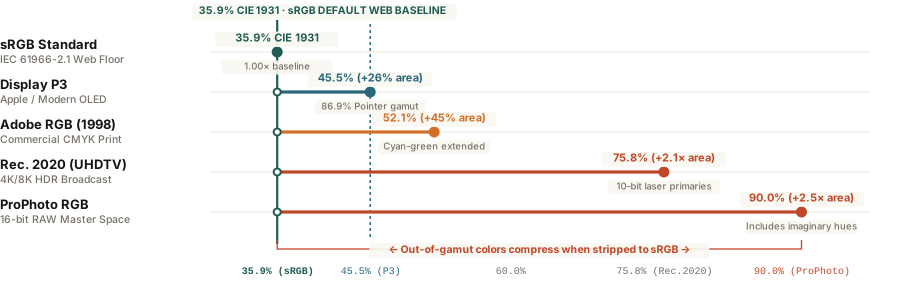
Why RGB Numbers Mean Different Colors in Display P3 vs. sRGB
An 8-bit RGB pixel does not store an absolute physical wavelength of light; it stores three relative coordinates between 0 and 255 that scale toward the red, green, and blue primary anchors of a specific color space. Under the W3C CSS Color Module Level 4 specification, standard sRGB covers 35.9% of the CIE 1931 chromaticity diagram (and 69.4% of Pointer's real-world surface gamut).
Modern smartphones, MacBooks, and studio OLED monitors utilize Display P3 (standardized under SMPTE EG 432-1), which retains sRGB's D65 white point and transfer curve but pushes the red and green primaries outward. That expansion gives Display P3 45.5% coverage of the CIE 1931 diagram—a 25% to 26% larger color volume than sRGB—while Adobe RGB (1998) spans 52.1% and 16-bit ProPhoto RGB spans 90.0%.
If an upload pipeline strips an image's ICC profile without converting its pixels, a wide-gamut red coordinate is mapped onto a narrower sRGB primary—visibly dulling saturation across the entire frame.
When an unprofiled browser view or third-party scheduling tool reads a raw Adobe RGB or Display P3 file as untagged sRGB, perceptual color error climbs to a Delta E of 4.8 for Display P3 and 8.4 for Adobe RGB—well above the human just-noticeable difference threshold (Delta E < 2.0).
The 3-Step Color-Safe Export Checklist for Carousels
To guarantee that multi-slide carousels and 4:5 vertical portraits render identically across iOS, Android, and desktop browsers:
- Convert (Never Just Assign) to sRGB: In Photoshop, choose Edit > Convert to Profile > sRGB IEC61966-2.1 before exporting, or select sRGB directly in Lightroom's Export Color Space menu. Converting recalculates the RGB numbers so perceptual hues stay locked inside the sRGB triangle.
- Embed the ICC Color Profile: Always check Embed Color Profile on export. A compact sRGB ICC v2 profile adds less than 3 KB (<3 KB) to your file size and instructs color-managed mobile displays not to over-stretch sRGB reds to the outer P3 boundary.
- Match Adjacent Carousel Slices: When building a seamless multi-slide Instagram panorama, verify that every sliced panel shares the exact same 8-bit sRGB profile so seams never show a brightness or tint jump mid-swipe.
To slice wide panoramas and batch-export color-consistent 1080×1350 social slides without manual profile mismatches, you can Plan multi-slide carousels in BatchPad directly in your browser.